V

Remove Canva Watermark from Video with AI

Free online Canva watermark remover tool. Remove Canva watermarks from videos instantly – including the Canva logo, username watermarks, and branded overlays. AI-powered watermark removal works directly in your browser. Upload your Canva video and remove the watermark in minutes. No software download required.

Upload Canva Video to Remove Watermark

Sign in with Google to get free credits. Draw a mask on the Canva watermark area, and our AI will remove it in minutes.

Watermark Removal Manual Draw

Draw on the video preview to mark areas you want to remove. Use the brush tool to mark, eraser to unmark.

Original Video

No video uploaded yet

Upload a video to see the preview here

How to Remove Canva Watermark from Video

Follow these simple steps to remove Canva watermarks from your videos using AI

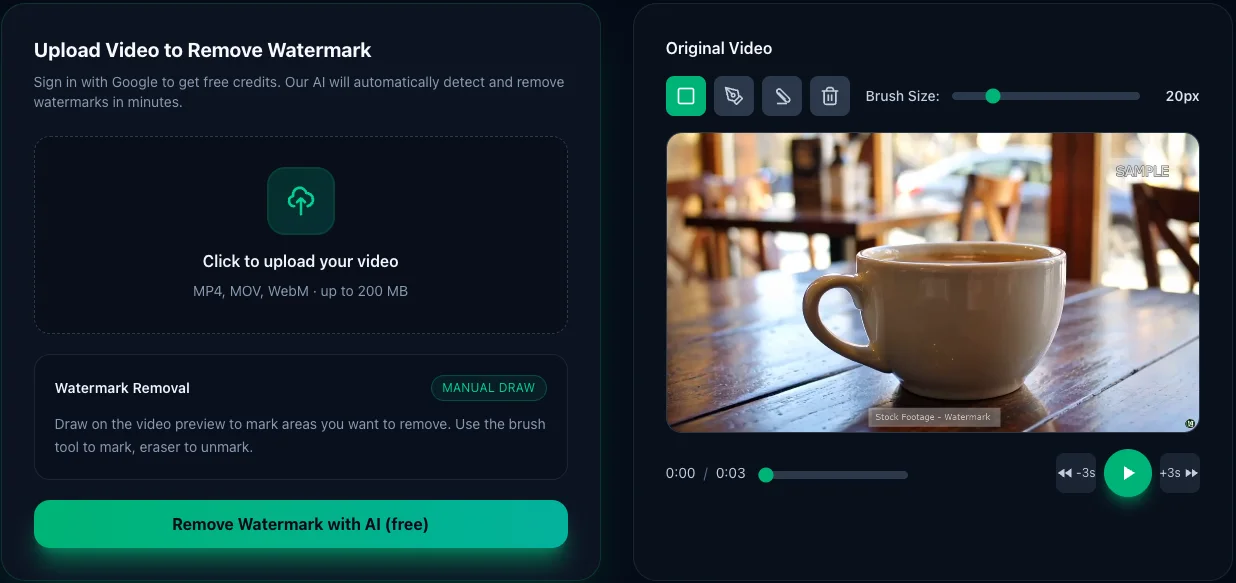
  1. 1.Upload Your Video

    Click or drag your video file into the upload area. We support MP4, MOV, WebM formats up to 200MB. Your video will be previewed on the right side for the next step.

    • Supports MP4, MOV, WebM formats
    • Maximum file size: 200MB
    • Maximum file size: 200 MB
    • No account needed for anonymous upload
    How to remove Canva watermark from video - Step 1: Upload video with watermark to our free AI tool
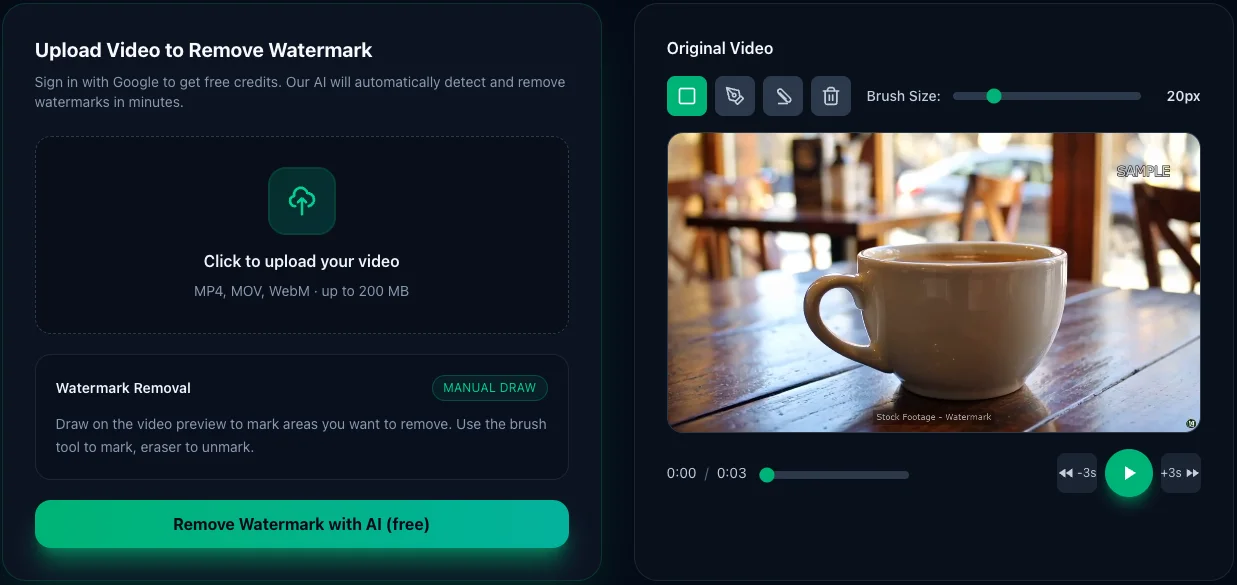
  2. Remove Canva watermark from video - Step 2: Draw mask over watermark area with rectangle tool

    2.Draw Over Watermark

    Use the brush tool to paint over the watermark or logo you want to remove. You can adjust brush size, use rectangle selection for large areas, or eraser to refine. The white overlay marks what will be removed.

    • Brush, rectangle, and eraser tools
    • Adjustable brush size for precision
    • Clear all or refine with eraser
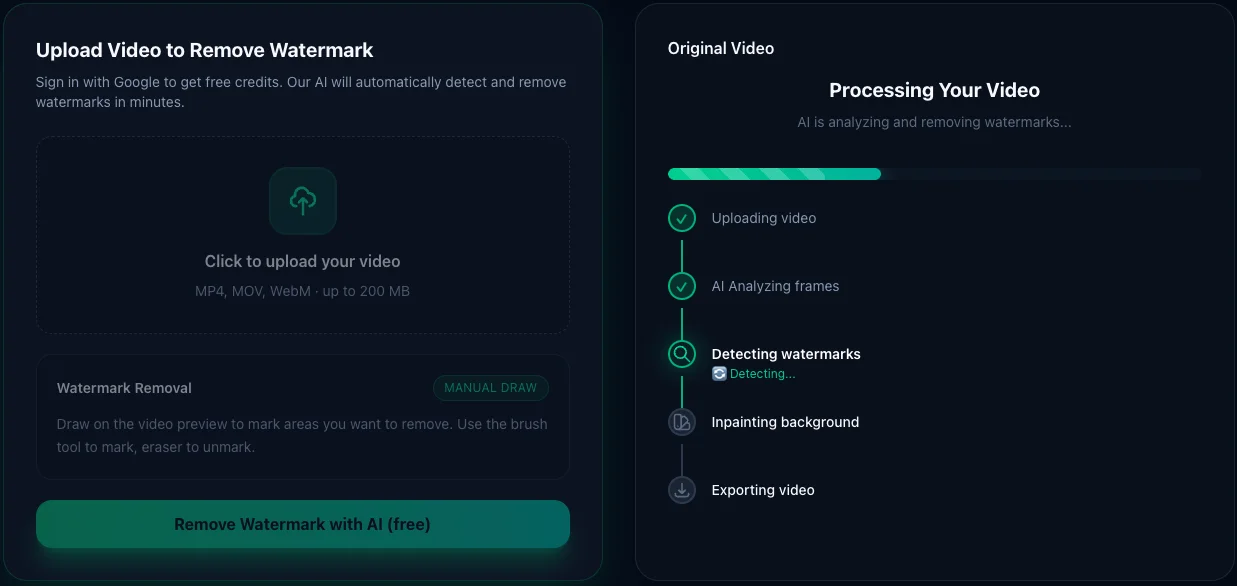
  3. 3.AI Processing

    Click "Remove Watermark with AI" button. Our AI will analyze your video and intelligently remove the watermark while preserving video quality. Processing typically takes 2-5 minutes depending on video length.

    • AI-powered inpainting technology
    • Processing takes 2-5 minutes
    • Real-time progress updates
    AI automatically removes Canva watermark from video - Step 3: Processing with advanced AI technology
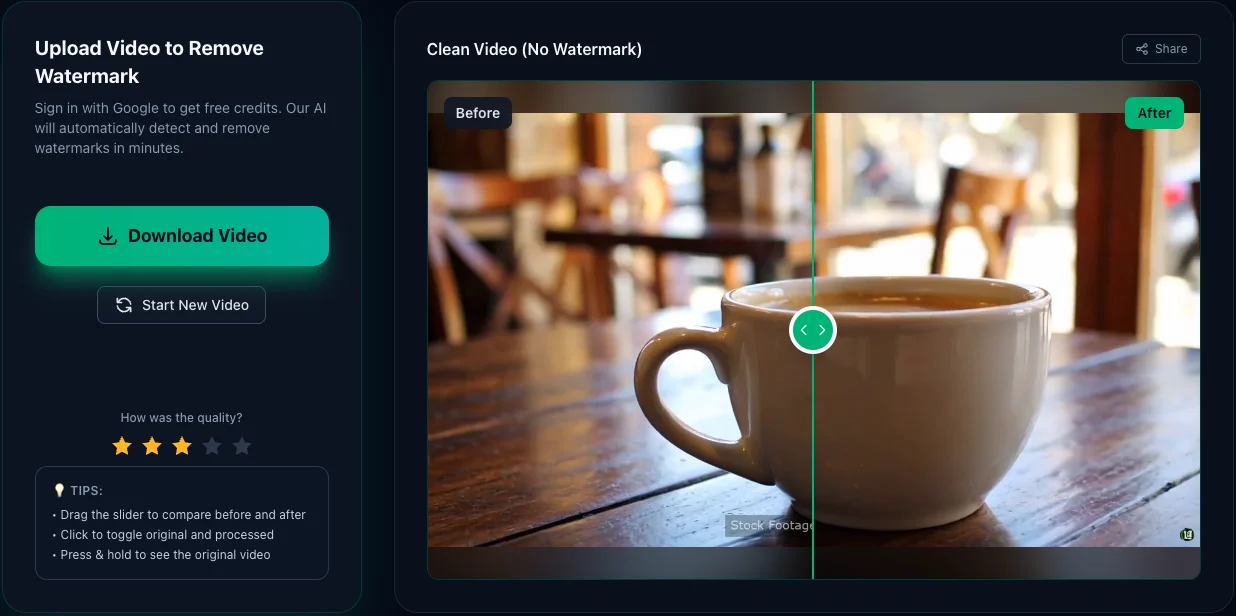
  4. Download Canva watermark-free video - Step 4: Preview before/after comparison and download clean video

    4.Download Clean Video

    Preview your watermark-free video with our before/after comparison slider. Satisfied? Click "Download Video" to save your clean video in high quality. No watermarks added by our tool!

    • Interactive before/after comparison
    • Original quality preserved
    • No watermarks added by our tool

Why use our Canva Watermark Remover?

01

No software

100% online – works in your browser. No installs, no plugins.

02

Smart AI clean

AI analyzes each frame and tries to fill the watermark area naturally.

03

HD quality

Designed to keep as much detail as possible while removing overlays.

Perfect for creators, editors, and marketers

Content repurposing

Reuse old clips, intros, or branded content without outdated logos or text.

Client work

Clean sample footage, social media exports, or drafts before delivering to clients.

Social media clips

Remove platform tags and overlays when re-editing content for new channels.

Tutorials & demos

Remove unwanted screen overlays or recording software logos from tutorial videos.

Frequently Asked Questions

Canva is great for design, but it has limitations when it comes to watermark and background removal. In the following FAQs, we explain what Canva can and can't do — and what options you have beyond Canva.

How to get rid of the Canva watermark?

Export your video from Canva (it will include the watermark), then upload it to our AI tool. Mark the watermark location (usually bottom-right corner), and our AI will process it automatically. Your Canva watermark-free video will be ready in minutes. Unlike Canva Pro which only prevents watermarks on new exports, our tool removes existing watermarks from already-created videos.

Does Canva Pro have a watermark remover?

No, Canva Pro doesn't have a watermark remover tool. Canva Pro offers Background Remover (only works on image backgrounds, not watermarks or videos), premium elements, and watermark-free exports for new downloads. However, it cannot remove watermarks from existing videos or remove Canva watermarks from videos you downloaded before subscribing. If you already have a Canva video with watermarks, Canva Pro won't help. Our AI watermark remover fills this gap by removing watermarks from already-exported videos.

Why does Canva add watermarks or background limits?

Canva adds watermarks and restricts features to encourage users to upgrade to Canva Pro. Watermarks on shared links and template downloads, along with Pro-only features like Background Remover and transparent exports, differentiate subscription tiers. Watermarks also help track content origin and protect Canva templates. This frustrates users because they created the content but can't export cleanly without paying. Our AI tool lets you remove Canva watermarks post-export without requiring a subscription.

Can Canva remove watermarks or backgrounds for free?

No, Canva Free cannot remove watermarks or backgrounds. Canva Free allows design creation with templates and exports with Canva watermarks. Canva Pro is required for Background Remover (images only, not videos), transparent PNG exports, and watermark-free downloads. For backgrounds, you can use free alternatives like Remove.bg, Photopea, or GIMP. For Canva watermarks on videos, our AI watermark remover can help. Canva monetizes watermark/background removal aggressively, but external tools like ours provide more flexible options without monthly subscriptions.

Why can't Canva remove background in some cases?

Canva's Background Remover fails for several reasons: It's Pro-only and not available in the free tier. It only works on static images (PNG/JPG), not videos. Low-quality, blurry, or low-contrast images confuse the AI. Complex subjects like intricate hair or similar foreground/background colors also fail. Canva may also block Background Remover on certain stock photos to prevent misuse. For video watermark removal (which Canva can't handle at all), use our AI tool.

How do I remove the white background from my logo or image?

Best free methods include Remove.bg (AI auto-removes white background), Photopea.com (free web Photoshop), PowerPoint (Remove Background feature), and GIMP (free desktop software). Canva Pro also offers Background Remover but requires a subscription. Always save as PNG (not JPG) to preserve transparency. For videos, background removal doesn't work on video files. If you have a Canva video with a logo watermark, our AI watermark remover can clean it up.

How to make an image background transparent for free?

Top free tools include Remove.bg (fastest, AI auto-processes), Photopea.com (more control), GIMP (professional free software), PowerPoint (Remove Background feature), and Pixlr.com (AI Cutout tool). Canva's Background Remover requires a Pro subscription, so for occasional use, free external tools are more economical. Always export as PNG (JPG doesn't support transparency). For videos, transparency isn't supported. For Canva video watermark removal, use our specialized tool.

How to save on Canva with a transparent background for free?

You can't save with a transparent background for free - Canva requires Pro for transparent exports. Free workarounds include using Canva Pro's free trial, exporting then removing the background with Remove.bg or Photopea, or designing elsewhere in GIMP or Photopea with transparency from the start. Transparent backgrounds are a core Pro differentiator to drive subscriptions. For video watermark removal (which Canva Pro doesn't offer anyway), our AI tool provides an alternative.

How to get rid of transparency issues in Canva exports?

Common transparency problems: If exported PNG shows black background instead of transparency, Canva Free doesn't support transparent exports - upgrade to Canva Pro or use Remove.bg post-export. If transparent PNG displays white background on certain platforms, some platforms don't render transparency - add solid background layer or export as JPG. If transparency works in Canva editor but not in export, ensure you're downloading as PNG, not JPG (JPG doesn't support transparency).

Which tool can remove Canva watermarks or backgrounds?

For Canva video watermarks, our AI Watermark Remover is the best option. It uses advanced AI to intelligently reconstruct video backgrounds, works on iPhone, Android, and desktop (web-based, no installation), and handles Canva, CapCut, TikTok, and stock footage watermarks. Alternative options include Adobe Premiere Pro (expensive, steep learning curve) or mobile apps (limited AI, often leave artifacts). For image background removal, use Remove.bg, Photopea, GIMP, or Canva Pro (images only). Our tool offers no subscription lock-in and works on videos, not just images.

Is it legal to remove Canva watermarks from images?

It depends on who owns the content. If you created the design/video in Canva using your own photos, text, and non-premium elements, you own the copyright and removing Canva's platform watermark is legal. If you have explicit permission from the creator, watermark removal is also legal. However, removing watermarks from Canva templates or designs you didn't create violates copyright law and Canva's Terms of Service. Using premium stock images by removing watermarks without paying for Pro is also illegal. Only remove watermarks from content you created or have explicit permission to edit.